How Can We Help?
How to Set a Catch-All Email Address in HostPanel?
A Step-by-Step Guide to Setting Up a Catch-All Email in HostPanel
Typos in email addresses (like asmin@yourdomain.com instead of admin@yourdomain.com) can cause missed messages. Hostpanel lets you set up a catch-all inbox to collect all emails sent to invalid addresses.
A catch-all inbox can collect emails sent to mistyped addresses on your domain, but it may also receive spam. It’s best to use a dedicated account for this. Here’s how to set it up in Hostpanel:
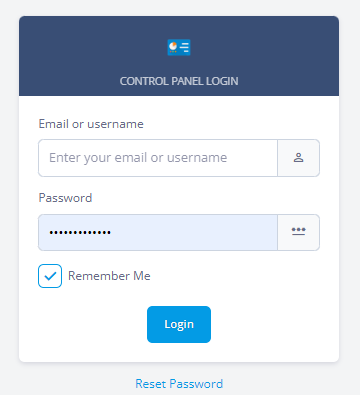
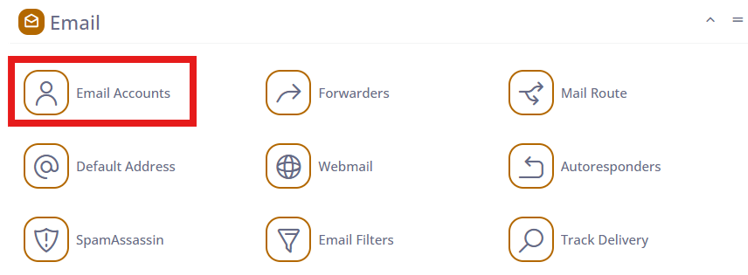
- Log in to Hostpanel’s User Interface at https://yourdomain.com/hostpanel, then click Email Accounts. You can also access it through the Admin Interface.
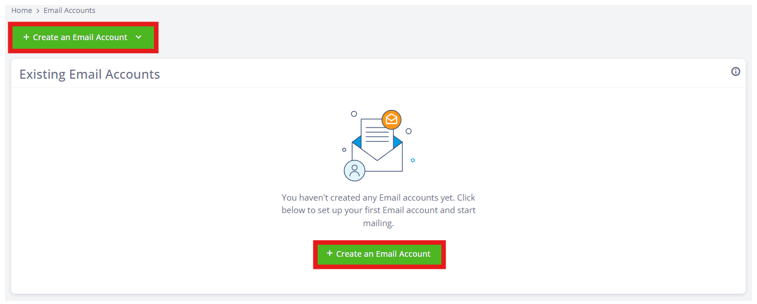
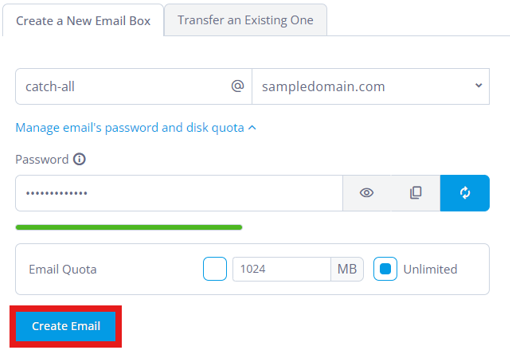
- Click “Create an Email Account” and choose a catch-all email address (e.g., catch-all@yourdomain.com), set a password, then click Create Email to finish.
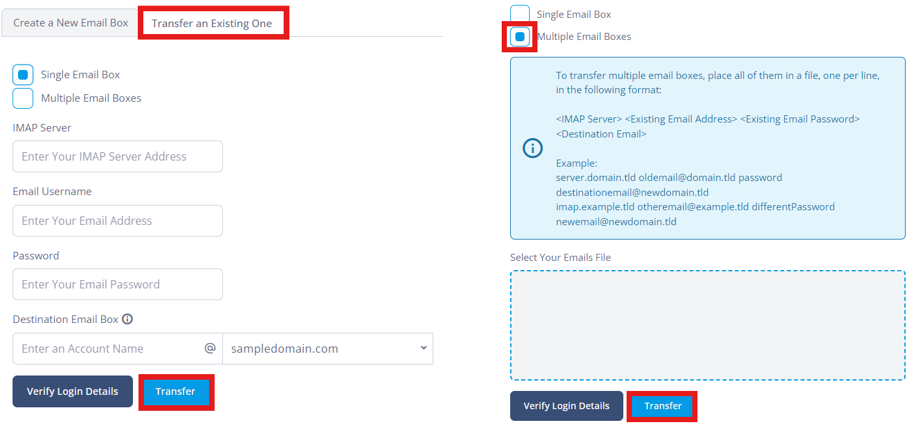
Additional: To transfer an existing email, click Transfer an Existing One. Choose Single Email Box or Multiple Email Boxes, fill out the form, and click Transfer. A sample guide is provided for multiple boxes.
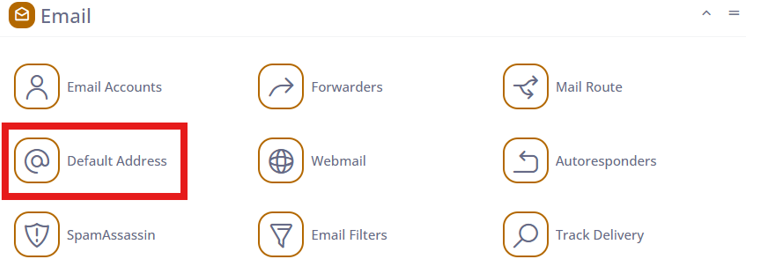
- Go back to Hostpanel’s home page and click Default Address to set up your catch-all email.
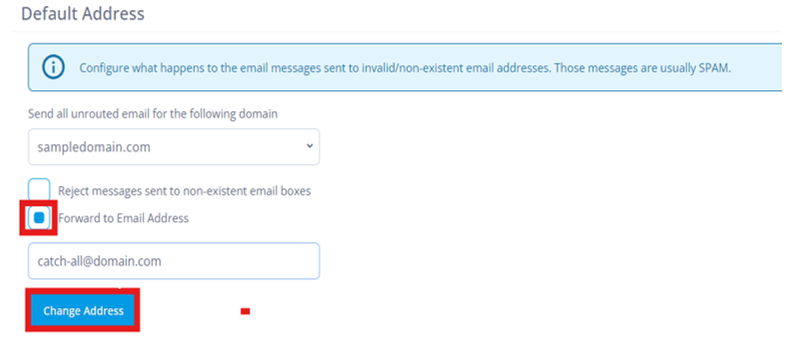
- Select your domain, choose Forward to Email Address, enter the catch-all address, then click Change Address to finish.