How Can We Help?
How to Restore a Database
Easily Recover and Restore Your Website Database
Websites have evolved from static HTML pages to dynamic platforms like WordPress, which rely on databases to deliver content. Because website performance depends on database health, web hosts provide management tools, especially for backup and restoration to ensure data safety.
With Hostpanel, daily backups of your files and databases are automatically created and kept for seven days. If you ever need to use them, you don’t have to restore everything—Hostpanel lets you choose exactly what to restore. Here’s how to do it:
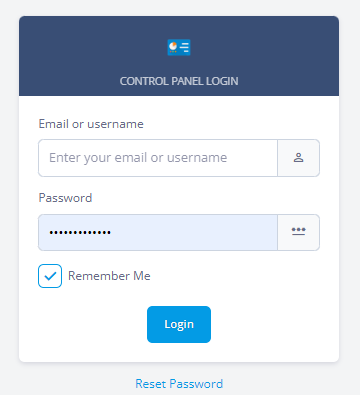
- Log in to Hostpanel’s User Interface at https://yourdomain.com/hostpanel.
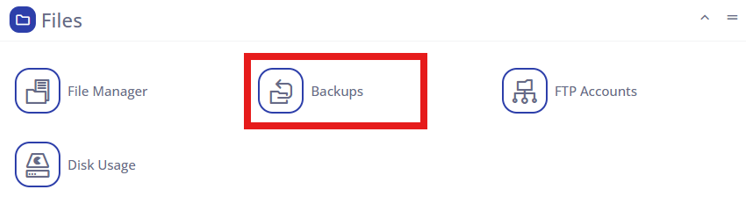
- Click Backups.
In Hostpanel, the Backups tool is located under the Files section on the homepage.
- Click Daily Cloud Backups and select a restore point.
You’ll see a list of all backups stored for your account. Choose the date from which you want to restore the database. And click it.
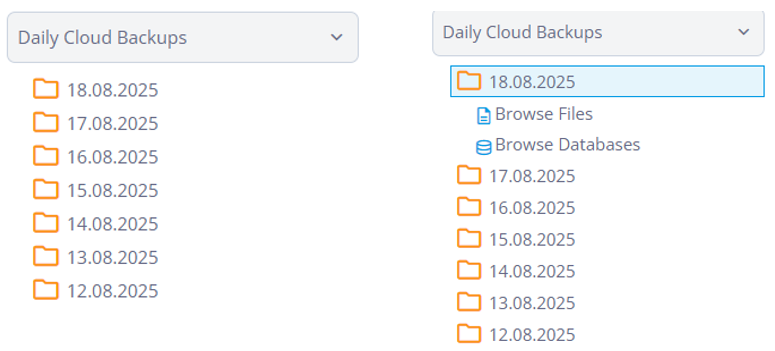
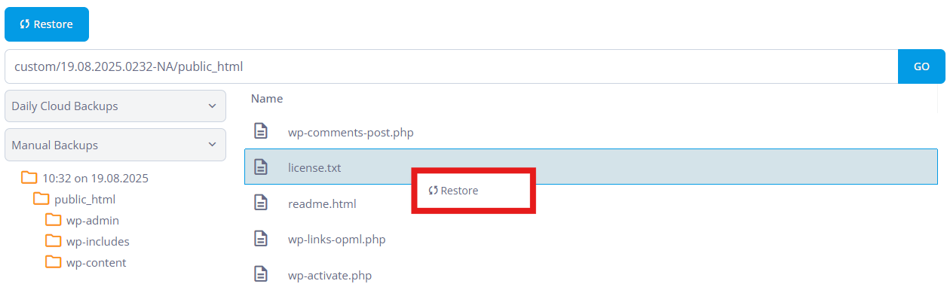
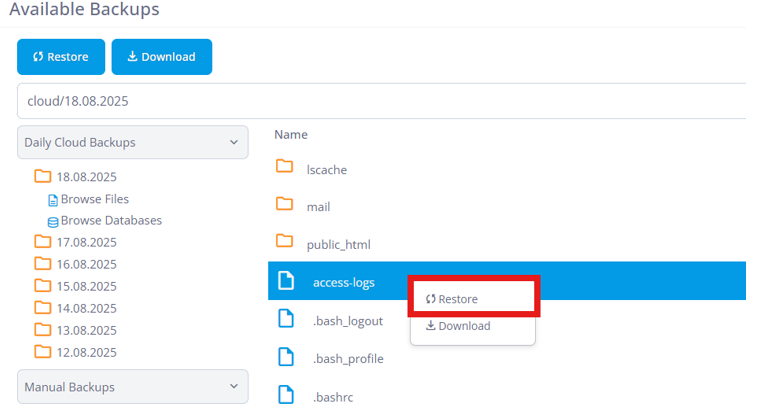
- You will see two options: Browse Files and Browse Databases. Select the item you want to restore by clicking right click, then click the Restore You can also download the item if you want.
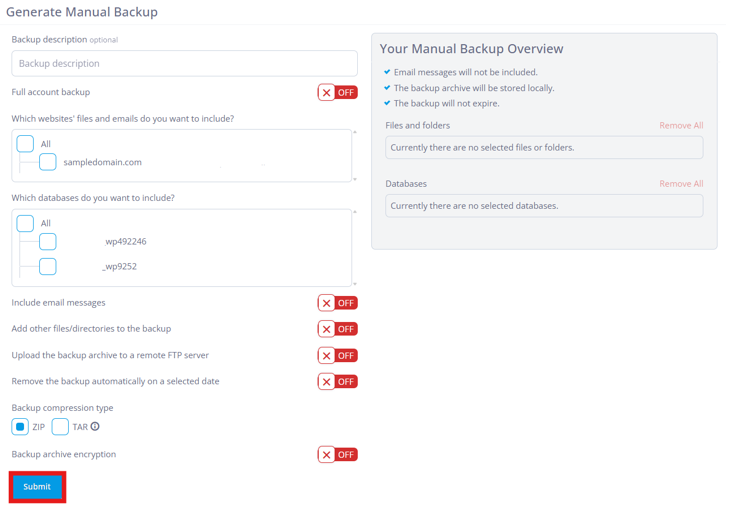
Additional: For the manual backups, click +New Manual Backup at the top, Generate Manual Backup form will come up, fill out the form then click submit.
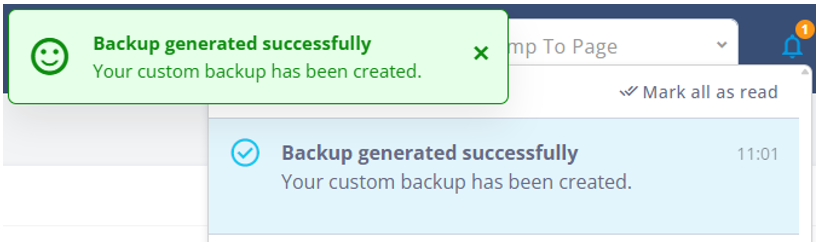
You will then get this notification, click the notification and it will bring you back.
Go to Manual Backups, locate the item you want, then right-click and select Restore.