
How Can We Help?
How to Edit Your Hosts File on Windows 8/10?
Your system’s Hosts file is an important part of the operating system that maps hostnames to IP addresses. It provides an alternative method of name resolution by allowing your computer to associate a specific domain name with a specific IP address.
For hosting users who are moving a website to a new provider, the Hosts file provides a convenient way to test the website on the new server before changing the domain’s DNS records or nameservers.
The changes made to the Hosts file apply only to your computer, so visitors using other devices will continue to access the website from the existing server until the DNS changes are made.
Below is a guide to editing the Hosts file on Windows.
Step 1 – Find Notepad and Run as Administrator
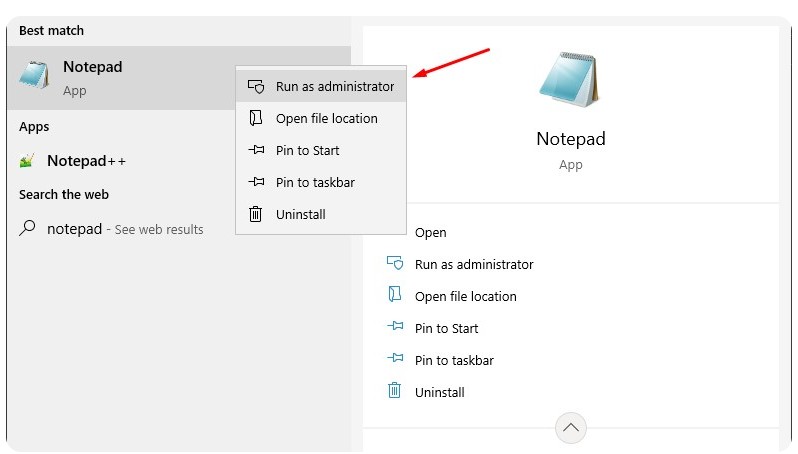
Click the Windows key and type Notepad in the search bar. Before you open it, right-click the mouse over it and choose the Run as Administrator option.
IMPORTANT: Don’t forget to open the notepad as an administrator or you won’t have enough rights to save the changes to the Hosts file.
Step 2 – Locate the Hosts File
Inside the Notepad, open the File menu and click the Open option. This will open your main PC folder. To navigate straight to the Hosts file, you can type the following path in the address bar:
c:\Windows\System32\Drivers\etc\hosts
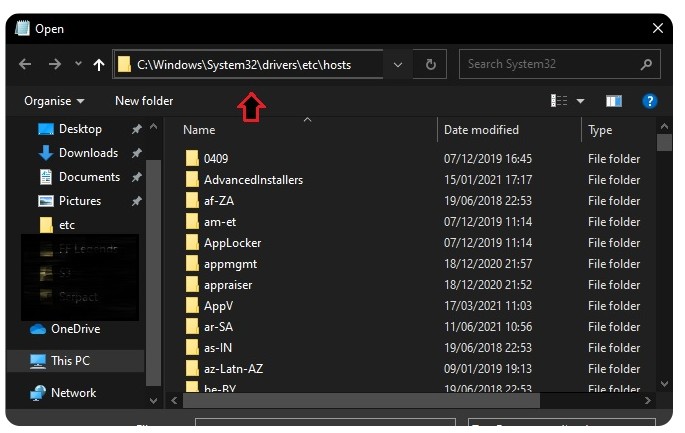
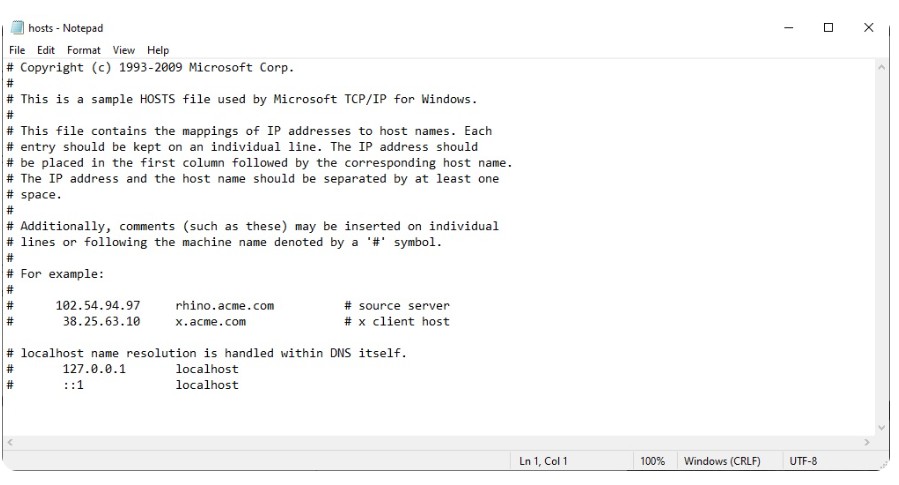
The system may ask you about the desired app to open the file; you can choose Notepad again. Inside, your Hosts file will look a little something like this:
Step 3 – Edit the Hosts File
Here is where you will be doing alterations to point your domain to the new server just for your computer. Start from the bottom line and add your records like this:
{IP Address} {yourdomain.com} {www.yourdomain.com}
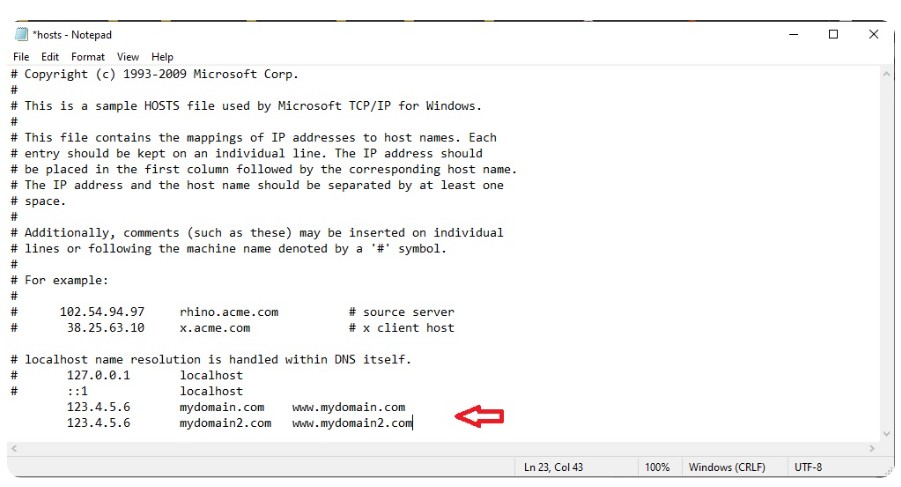
IMPORTANT: Make sure to add both the www and non-www versions of your domain. Also, you need to add a line for every domain name you wish to test.
Step 4 – Delete Changes after Testing
One important step you should not forget is returning everything as it was before you made the change. Delete the lines you added and return the Hosts file to its default state.
IMPORTANT: The changes you make to the Hosts file point the domains to your new server just for your computer. Visiting the website from another device will load it from the old server until you change the name servers.