
How Can We Help?
How to Clone a WordPress Website in HostPanel
Simplify Website Migration and Testing with Cloning
Hostpanel is optimized to give you the best hosting environment for WordPress projects. WordPress is popular for its ease of use, powering over a third of all websites. With Hostpanel’s WordPress Manager, you can quickly clone a site in just a few steps instead of doing it manually.
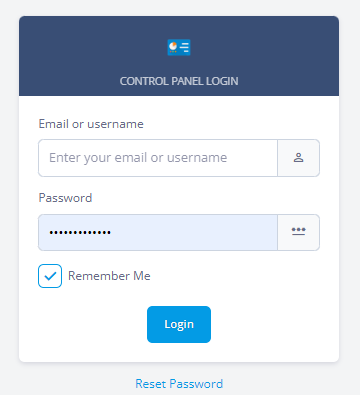
- Log in to Hostpanel’s User Interface at https://yourdomain.com/hostpanel.
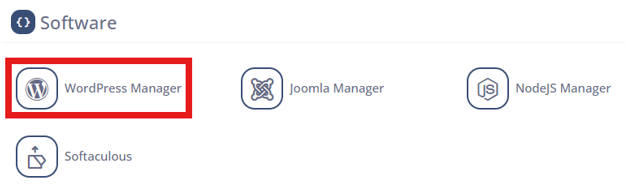
- Simply scroll down a little bit and you can find the WordPress Manager under the Software section on Hostpanel’s homepage.
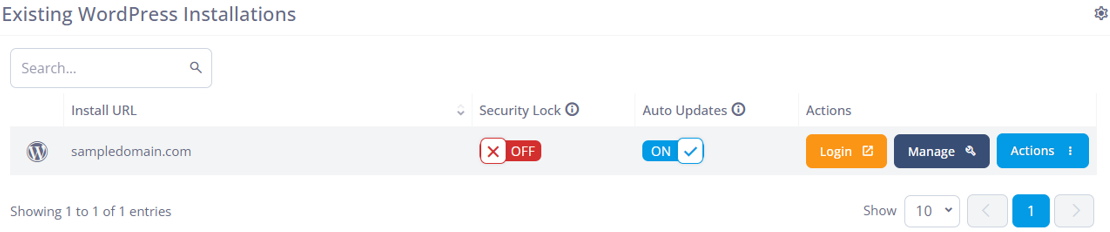
- When you open it, you’ll see a list of all WordPress installations currently hosted on your account.
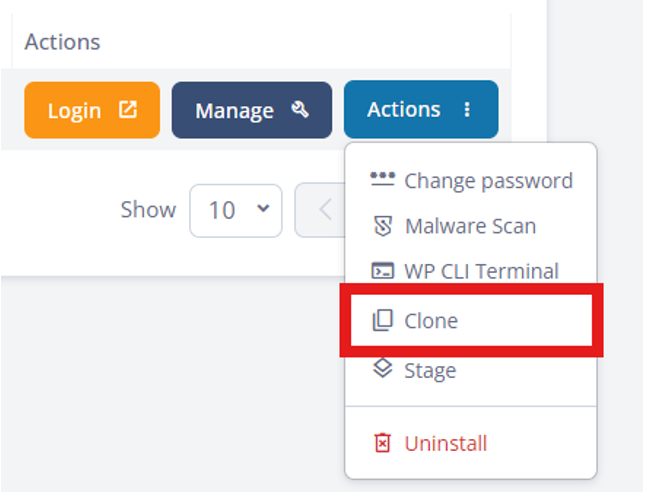
- Open the Actions menu, select Clone. You can also choose other available options from the same menu.
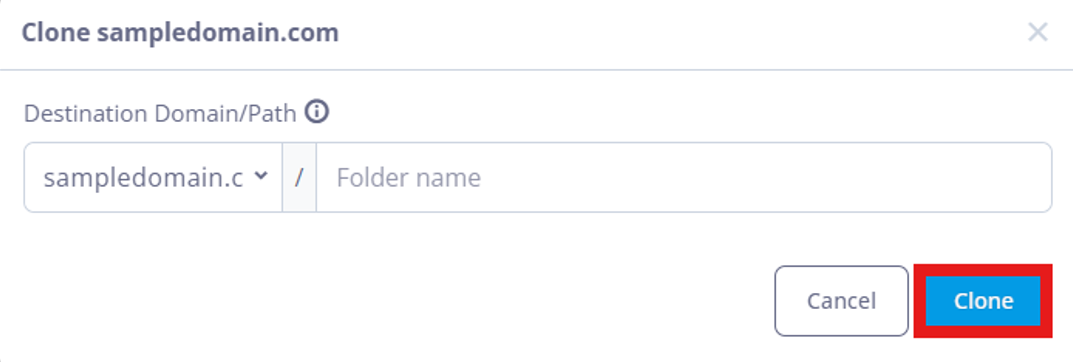
- Select a domain or subdomain for the clone, add a folder name if needed, then click Clone. Hostpanel will copy the files and database to the new location automatically.
 Why might you want to clone a WordPress website?Cloning your site lets you test updates, themes, or plugins in a safe copy before applying them to your live site. This way, you can check for errors, compatibility issues, or design conflicts in a subfolder environment, ensuring your main website stays stable and uninterrupted.