How Can We Help?
How to Change My FTP Password
Keep Your Files Secure by Updating Your FTP Access
The login details for Hostpanel’s User Interface also grant FTP access. If compromised, hackers could modify your website’s files, steal or delete database data, remove email accounts, or even use them for spam.
If you’re using a managed VPS hosting solution, you can change the passwords for all accounts on your server through Hostpanel’s Admin Interface. On the homepage, you’ll see a list of all Hostpanel user accounts, each with an Actions menu that includes a Change Password option. If you’re a user account owner, you can also change your password directly through Hostpanel’s User Interface. Here’s how:
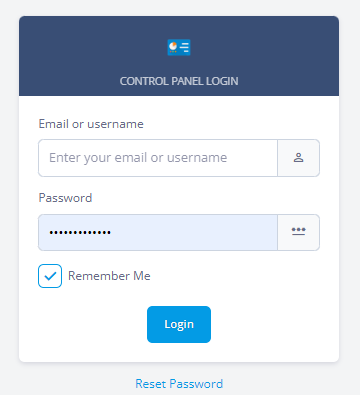
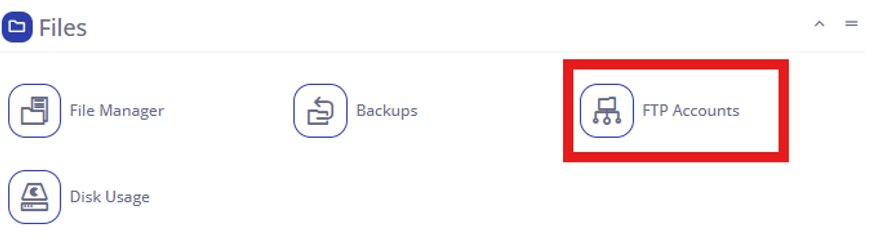
- Log in to Hostpanel’s User Interface and go to Subdomains. The default login URL is https://yourdomain.com/hostpanel (replace com with your actual domain). You’ll find the FTP Accounts under the Files section on the Hostpanel homepage.
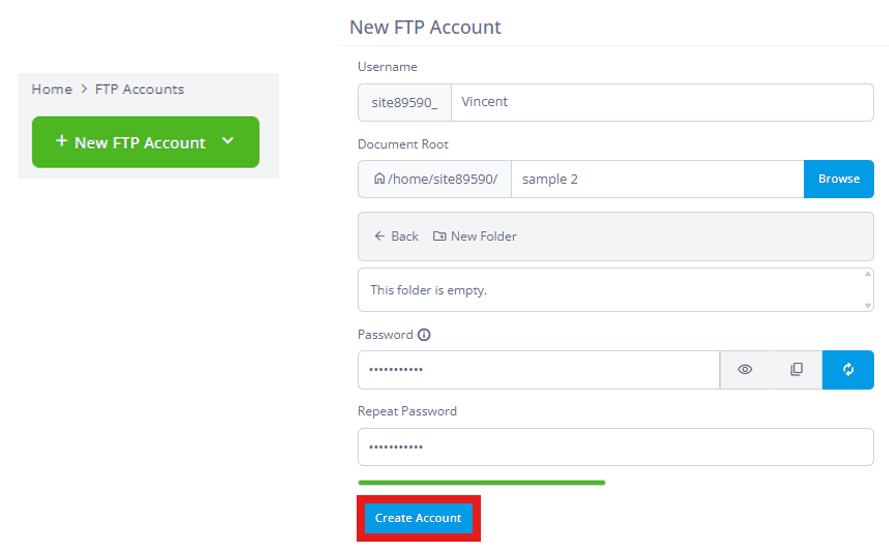
- Click New FTP Account.
A form will appear—fill in the required details, then click Create Account to finish.
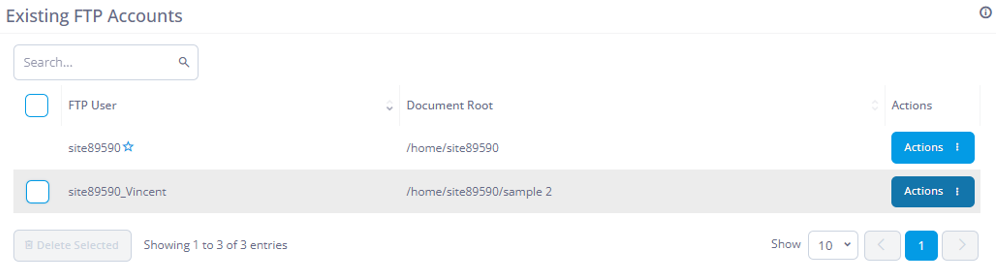
- After creation, new accounts will now be listed in the “Existing FTP Accounts”. You can update your FTP Accounts on the Actions button on the right.