How Can We Help?
How to Add an Addon Domain
Configure and Manage Addon Domains
It’s easy to confuse an addon domain with a subdomain. A subdomain stores its files in a folder within your account’s home directory, and you can manage it separately from the parent domain.
An addon domain also has its own document root in the home directory, but it’s linked to a separate domain, completely independent of your main domain. With HostPanel, you can launch new projects in just a few clicks, making it quick and easy to set up an addon domain. Here’s how:
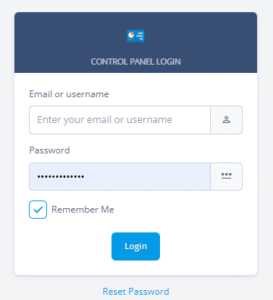
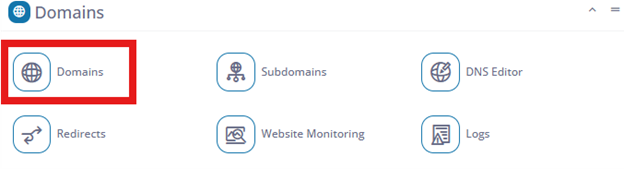
- Log in to Hostpanel’s User Interface and go to Subdomains. The default login URL is https://yourdomain.com/hostpanel (replace com with your actual domain). You’ll find the Domains under the Domains section on the Hostpanel homepage.
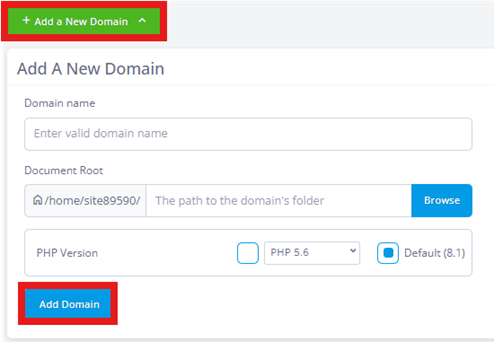
- Click the Add a new domain. The addon domain form is simple: type your domain in the first field, then select its document root. By default, HostPanel creates a new folder in your account’s home directory, but you can also set a custom path or use an existing directory. Choose the PHP version that is best for you.
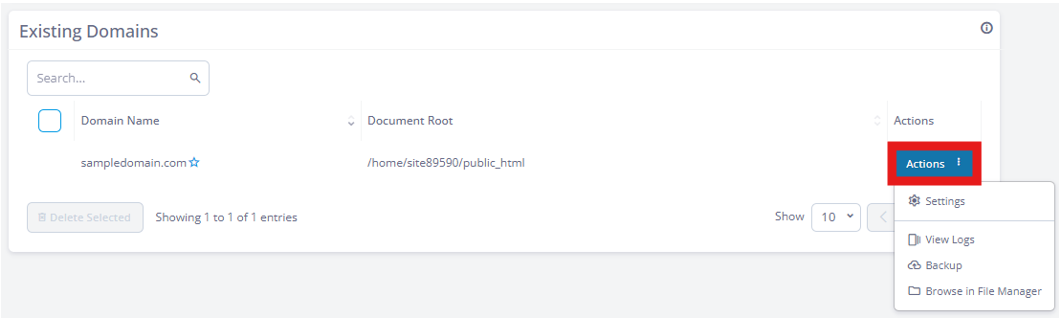
- Save the changes. Click Add Domain to create the addon domain and link it to its assigned document root. It will then show in “Existing Domains” and there you can change & view details about your new and existing domains by clicking the Actions button.