How Can We Help?
How to Create a Subdomain
Easily Manage and Configure Your Website’s Subdomains
Subdomains are useful for both users and website administrators. For example, if you have a WordPress site and want to add an online shop, you could use a dedicated application like Magento or PrestaShop. Since two scripts can’t share the same root folder, creating a subdomain such as shop.yourdomain.com makes managing both applications easier.
Creating a subdomain in Hostpanel takes only a few clicks. Here are the steps:
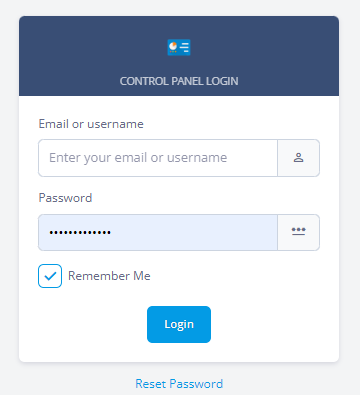
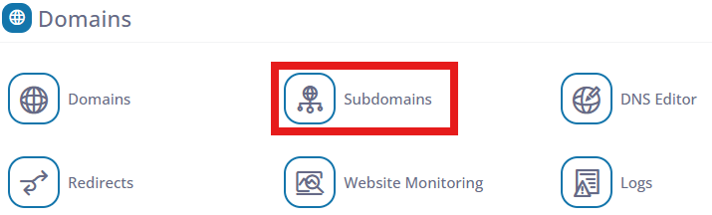
- Log in to Hostpanel’s User Interface and go to Subdomains. The default login URL is https://yourdomain.com/hostpanel (replace com with your actual domain). You’ll find the Subdomains tool under the Domains section on the Hostpanel homepage.
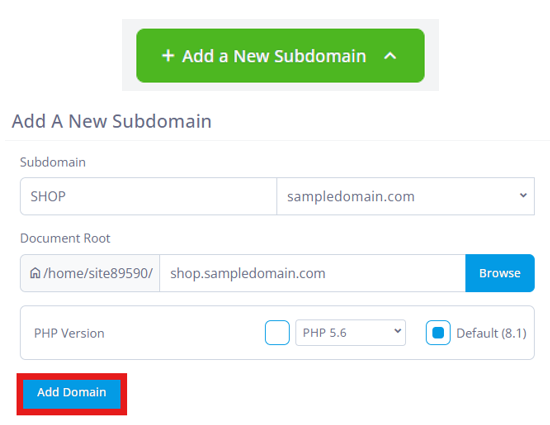
- Click Add a New Subdomain. Choose your primary domain or one of your addon domains from the drop-down menu, then enter the desired subdomain name (letters, numbers, and hyphens are allowed). Next, set the document root. By default, Hostpanel creates a new folder in your account’s home directory, but you can also enter a custom file path in the Document Root When ready, click Add Domain to finish.
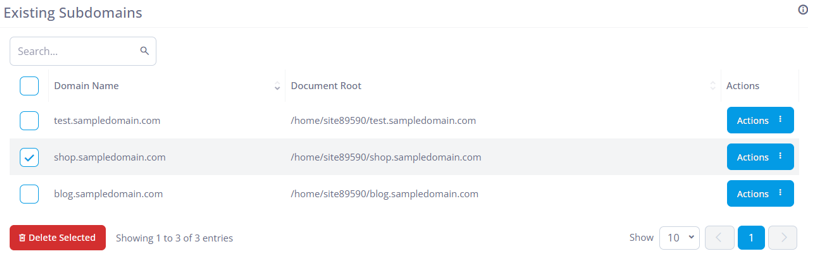
- After you click Add Domain, Hostpanel will create the new subdomain and configure it to work with the chosen document root. If the folder doesn’t already exist, Hostpanel will create it automatically. The new subdomain will then appear in the list at the bottom of the page, along with all your existing subdomains.