How Can We Help?
How to Change an Email Account’s Password
Secure Your Account by Updating Your Password Safely
Creating email accounts linked to your domain is a core part of your hosting service—and it greatly impacts how your business is perceived. People are more likely to trust organizations that use branded email addresses instead of generic ones like Gmail or Yahoo. Even if your website is just for personal use, a domain-based email reassures users that their messages won’t get lost among personal conversations and promotions.
Changing an email account’s password via HostPanel is quick and simple. Here’s how:
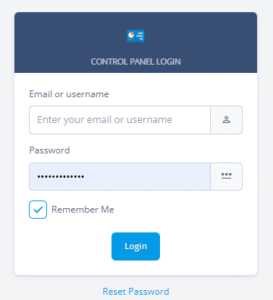
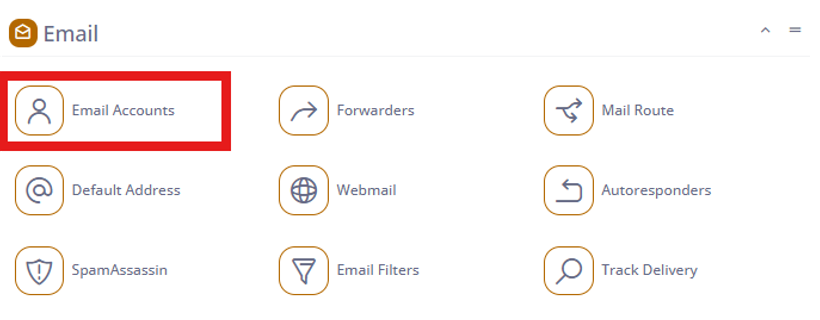
- Log in to Hostpanel’s User Interface and go to Subdomains. The default login URL is https://yourdomain.com/hostpanel (replace com with your actual domain). You’ll find the Email Accounts under the Email section on the Hostpanel homepage.
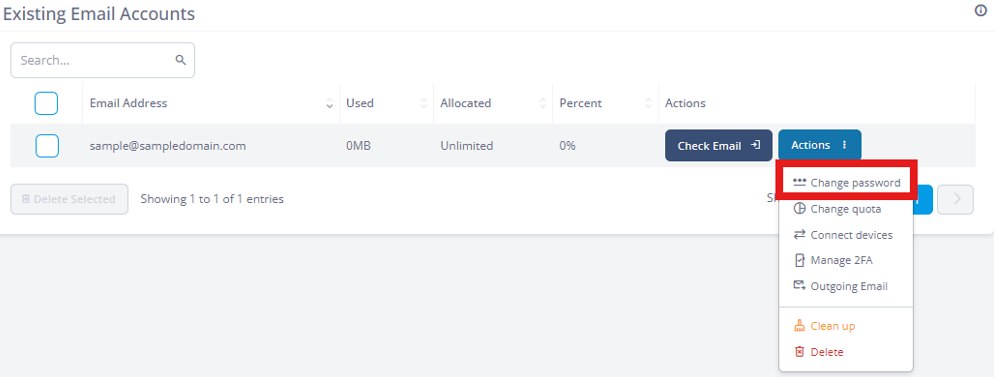
- Click the Actions drop-down list. There, you can see the change password option and others.
- A window will open – complete the form, set a unique password for better security, and click Change to confirm.

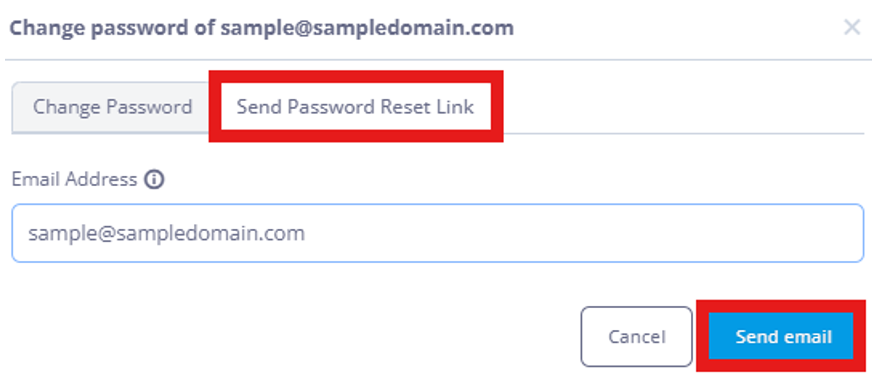
Additional: If you somehow forgot your password and want to reset it, you have the Send Password Link option. The password reset link and instructions will be sent to the email you provided.