
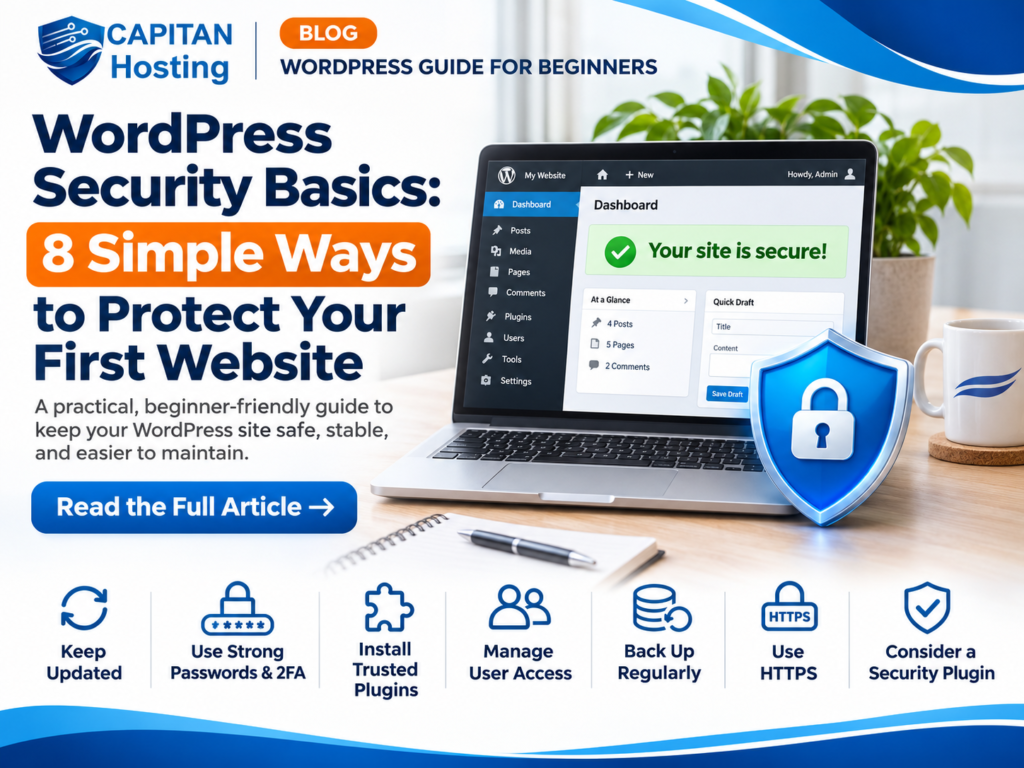
Building your first WordPress website can be exciting. You get to choose a theme, customize the design, install plugins, and finally see your website running online.
But while most beginners focus on making their websites look good, one important part of website development is sometimes overlooked: security.
A website can look professional and function perfectly but still have security weaknesses. An outdated plugin, a weak password, or an improperly managed administrator account can create opportunities for attackers.
The good news is that you don’t need to be a cybersecurity expert to start protecting your WordPress website. A few basic practices can make a meaningful difference.
Here are eight things every beginner should know.
1. Keep WordPress, Themes, and Plugins Updated
One of the easiest ways to improve WordPress security is to keep everything updated.
WordPress regularly releases updates to fix bugs, improve performance, and address security vulnerabilities. Plugin and theme developers also release updates for similar reasons.
When you ignore these updates, your website may continue using software with known security weaknesses.
What you should do:
- Open your WordPress dashboard and go to Dashboard → Updates.
- Check for available WordPress, plugin, and theme updates.
- Create a backup before making significant updates.
- Review your website after updating to make sure everything still works.
You can also enable automatic updates for selected plugins and themes. However, remember that some updates may affect website functionality, especially when multiple plugins work together.
Beginner tip: Make it a habit to check your website for updates at least once a week. Don’t wait until something goes wrong.
2. Use Strong Passwords and Two-Factor Authentication
Your WordPress administrator account gives you access to almost everything on your website.
If someone gains access to that account, they may be able to modify pages, install malicious plugins, or change your website settings.
This is why your login credentials need proper protection.
Avoid passwords based on your name, birthday, business name, or simple combinations such as “Password123.”
Instead, use a long, unique password. A password manager can help you generate and store one securely.
For additional protection, enable two-factor authentication (2FA).
Two-factor authentication requires another verification step when logging in, usually through an authentication application on your phone.
Even if someone discovers your password, this additional step can make unauthorized access more difficult.
Beginner tip: Use a reputable WordPress 2FA plugin and keep your recovery codes somewhere secure.
3. Be Careful When Installing Plugins and Themes
Plugins are among the reasons WordPress is so popular. They allow you to add contact forms, galleries, booking systems, and many other features without developing everything from scratch.
However, not every plugin is safe to install.
Some plugins are poorly maintained, while others may contain vulnerabilities. Downloading plugins or premium themes from suspicious websites can also expose your website to malicious code.
Before installing a plugin, check:
- Whether it comes from the official WordPress Plugin Directory or a trusted developer.
- When it was last updated.
- Whether it is compatible with your WordPress version.
- Whether it has an active support and maintenance history.
Avoid downloading pirated or “nulled” premium plugins and themes. The money you save may not be worth the security risks.
You should also remove plugins and themes you no longer need. Simply deactivating an unused plugin does not remove its files from your server.
Beginner tip: Install only what your website actually needs. More plugins do not automatically mean a better website.
4. Don’t Give Everyone Administrator Access
When developing a WordPress website with classmates, teammates, or clients, you may need to create additional user accounts.
A common beginner mistake is assigning the Administrator role to everyone because it provides full access.
However, not everyone needs that level of permission.
WordPress provides several user roles, including:
- Administrator: Can manage website settings, users, themes, and plugins.
- Editor: Can manage and publish content, including content created by others.
- Author: Can publish and manage their own posts.
- Contributor: Can write posts but cannot publish them.
- Subscriber: Has limited access, mainly to their own profile.
For example, if someone is only responsible for writing blog articles, giving that person Administrator access is unnecessary.
This practice is called the principle of least privilege, which means giving users only the access they need to perform their tasks.
Beginner tip: Give each team member a separate account. Avoid sharing a single administrator username and password.
5. Back Up Your Website Regularly
Imagine spending several weeks developing a website, only to lose your work because of a technical error, a failed update, or a security incident.
This is where website backups become important.
A backup is a saved copy of your website that can be used to restore it when something goes wrong.
A complete WordPress backup should include both your website files and database. Your database contains important information such as posts, pages, settings, and user records.
You can create backups using a trusted WordPress backup plugin or the backup facilities provided by your hosting service.
For a small website that rarely changes, weekly backups may be sufficient. Websites with frequent updates, orders, or customer activity may need daily or more frequent backups.
Store backup copies somewhere separate from your website’s hosting account. A backup stored only on the affected server may become inaccessible during an incident.
Most importantly, make sure you know how to restore your backups. Having backup files is useful only when they can be recovered successfully.
Beginner tip: Always create a backup before major website changes.
6. Make Sure Your Website Uses HTTPS
Have you noticed the padlock or security information shown beside website addresses in some browsers?
Websites using HTTPS encrypt data transmitted between visitors’ browsers and the website server.
This is especially important when users enter passwords, submit contact forms, or provide other information.
To enable HTTPS, your website needs a valid SSL/TLS certificate and proper configuration.
Many hosting providers support SSL certificates, but you should still confirm that your website is configured correctly.
Try opening your website using https://yourdomain.com and check whether it loads without certificate warnings.
Remember that HTTPS protects data in transit, but it does not automatically protect your website from vulnerable plugins, stolen credentials, or other attacks.
Beginner tip: Check that your WordPress address and site address use HTTPS under Settings → General. Do not change these settings without confirming that HTTPS is already working.
7. Consider Using a WordPress Security Plugin
If you’re just beginning WordPress development, you may not be familiar with website firewalls, login protection, or malware monitoring.
Fortunately, reputable security plugins can help you manage some of these tasks.
Depending on the plugin and its configuration, security tools may provide:
- Login attempt protection.
- Malware scanning.
- File change monitoring.
- Security alerts.
- Website firewall features.
Examples of established WordPress security plugins include Wordfence Security and Solid Security.
You do not need to install several security plugins that perform the same functions. Overlapping features may cause conflicts or unnecessary performance overhead.
Choose a security solution that matches your website’s needs and take time to understand its settings.
Most importantly, remember that installing a security plugin does not guarantee complete protection.
Beginner tip: Start with the features you understand, such as login protection and security notifications, before changing advanced settings.
8. Make Website Security Part of Your Development Routine
Website security should not be something you think about only after your website has been hacked.
It should be part of your normal development and maintenance process.
For example, before launching a website for a client, check that all plugins are updated, user permissions are appropriate, backups are working, and HTTPS is properly configured.
After launching the website, continue reviewing its security.
A simple weekly routine might include checking updates, reviewing administrator accounts, confirming successful backups, and looking for unusual website activity.
If you are developing a website for someone else, remember to explain the importance of maintenance.
A website is not necessarily finished when it goes online. It still needs attention as technologies, security threats, and website requirements change.
Beginner tip: Create a simple website maintenance checklist. It can save you from overlooking important tasks as you work on more projects.
Final Thoughts: Start with the Basics
You don’t need expensive tools or advanced technical knowledge to begin improving your WordPress website’s security.
Start with the essentials: keep your software updated, use strong passwords, enable two-factor authentication, limit user access, and maintain reliable backups.
As you gain more experience in WordPress development, you can gradually learn about advanced security topics such as server configuration, web application firewalls, file permissions, and vulnerability monitoring.
Just remember that website security is not a one-time setup. It is an ongoing responsibility.
A good WordPress developer doesn’t just build a website that looks good and works properly. A good developer also understands the importance of protecting the website and the people who use it.
Developing your first WordPress website?
At Capitan Hosting, we believe that understanding website security is an important part of becoming a responsible website developer.
Explore our website at https://capitanhosting.com and continue learning about web hosting, website management, and WordPress development.